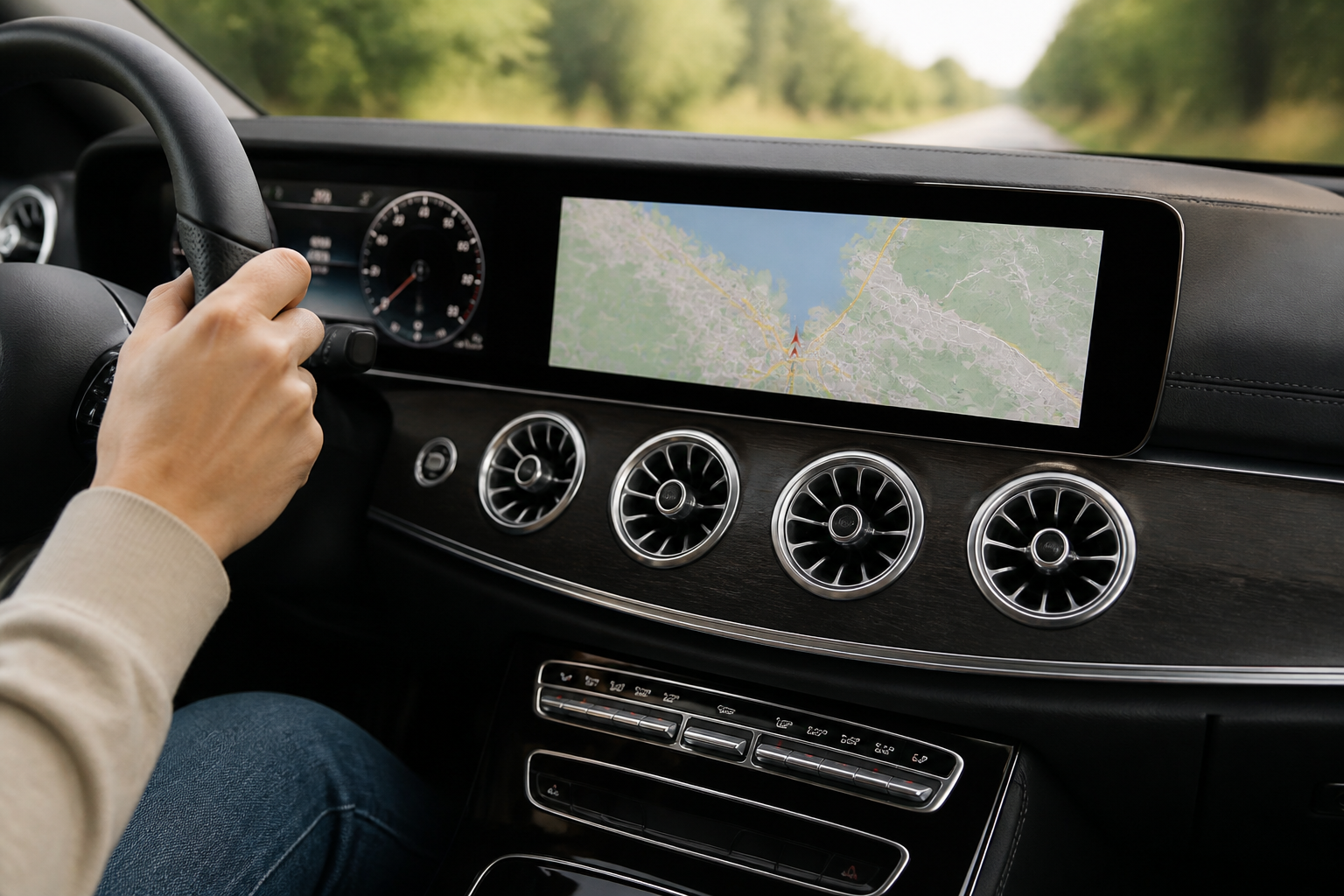
Check which map system you have in MBUX, then choose OTA or USB/manual update based on availability. If OTA doesn’t start, use the USB/manual path as described by official Mercedes-Benz guidance. Verify the installed map version first to determine whether an update is needed.
Key takeaways
- Verify your current map version in the MBUX navigation system before attempting an update.
- Use OTA updates via Mercedes me connect when available; switch to USB/manual updates if OTA is unavailable or does not start.
- Consult region-specific official guides (Mercedes-Benz Japan, Mercedes-Benz USA) for system‑specific paths and troubleshooting.
- OTA updates and Online Map Update are framed within Mercedes me connect services, not as generic third‑party updates.
- If in doubt, follow the in-vehicle prompts and rely on the official owner guides for the correct USB preparation and update steps.
Mercedes-Benz owners can keep their navigation current by checking the map data version in MBUX and selecting the update method that fits their vehicle and connectivity. This article provides a practical, step-by-step workflow to verify the installed map version, choose between online (OTA) or USB/manual updates, and navigate common “OTA didn’t start” scenarios without getting stuck. The guidance draws on official Mercedes-Benz documentation and owner resources, tailored to readers who want a clear, action-oriented process.
How to verify the currently installed map version in MBUX
Start by locating the map data version so you know whether an update is necessary. Mercedes-Benz notes that the exact in-car path to view the version can vary by infotainment system and model. In general, you will access the infotainment or vehicle settings menu and navigate to the navigation or map information section to reveal the installed map data version and the map provider or generation (for example, system families such as MBUX Gen20x, MBUX NTG7, MBUX NTG6, or COMAND NTG5.5 may present slightly different menu structures).
Rationale for checking first: updating when your version is already current can consume time and potentially incur data usage. Verifying the version before initiating an update ensures you’re targeting the correct map data tier and avoids unnecessary downloads.
Choose your update method: OTA versus USB/manual
Mercedes-Benz supports two primary pathways for map data updates:
- OTA (online) map updates via Mercedes me connect: The vehicle downloads and applies updates over the car’s connected services network. This method is the preferred, hands-off option when a stable connection is available and the update is offered for your system and region.
- USB/manual updates: Used when OTA isn’t available, cannot be started, or a vehicle requires a local update path. The USB/manual route has specific file requirements and a defined process described in official owner guides. It typically involves downloading an update package to a USB drive from the Mercedes site or dealer portal and loading it into the vehicle’s USB port to install.
Practical decision criteria: confirm your vehicle’s navigation system family (MBUX Gen20x, MBUX NTG7, MBUX NTG6, or COMAND NTG5.5), check for OTA availability in your region, and ensure the vehicle has a reliable internet connection. If OTA is available and works reliably, it is usually faster and simpler. If OTA is not accessible due to connectivity, region restrictions, or the update not being offered for your exact hardware, switch to the USB/manual method as instructed by the official guides.
Step-by-step workflow: performing OTA updates
- Open the vehicle’s connected services or Mercedes me app/portal as instructed by your region’s guidance.
- In the car, access the navigation/update section to check for available updates. If an update is listed, initiate the download. Ensure the vehicle has a stable power source (preferably parked with the engine running or plugged in, depending on your model) to prevent interruptions.
- Follow the on-screen prompts to complete the installation. The system may require a restart or confirmation that the update has been applied.
- After installation, verify the new map version in the same menu used to view the installed version. A successful update should reflect the new map data version and, if shown, a fresh build number.
Notes for OTA: OTA update availability and size can vary by model and market. Some updates may be delivered as incremental packages; others may require a full map data install. If OTA prompts indicate a pause or delay, ensure the vehicle remains connected to a stable network and retry as instructed by the in-car prompts or the Mercedes me connect portal.
Step-by-step workflow: performing USB/manual updates
- Download the correct map update package for your specific vehicle system (MBUX Gen20x, NTG7, NTG6, or COMAND NTG5.5) from the official Mercedes-Benz resources or dealer portal for your region. Verify the file corresponds to your car’s VIN, model year, and infotainment system.
- Prepare a formatted USB drive as specified by the official instructions (including required file structure and naming conventions). Copy the update package onto the USB drive as directed.
- Insert the USB drive into the vehicle’s USB port and follow the on-screen prompts to start the update. Do not remove the USB drive during installation unless the system explicitly allows it.
- Allow the update to complete and perform any required restarts. Once finished, navigate again to the map information screen to confirm the new version is installed.
USB/manual updates require careful matching of the update package to your system and region. Using an incompatible file can fail to install or, in worst cases, affect navigation performance. Always rely on official, region-specific sources when obtaining the update package.
Handling common “OTA didn’t start / update not available” scenarios
Mercedes-Benz documentation and owner guides commonly describe a few predictable situations:
- OTA update unavailable in your region or for your system: Some map updates are rolled out gradually by region or require specific hardware generations. If the in-vehicle prompt indicates no update is available, proceed with the USB/manual option if you need the latest data.
- OTA requires a power/charging condition: Some cars require a minimum power level. Ensure the battery is sufficiently charged or the vehicle is connected to a power source to prevent mid-update interruptions.
- Connectivity hiccups: A weak or unstable connection can stall OTA. If the app or vehicle reports a connection issue, retry when the network is stable or try a scheduled update window.
- Software restrictions or deprecation: Older engines or infotainment generations may have limited OTA support. In such cases, USB/manual updates are the only viable path supported by the manufacturer.
Editorial takeaway: treat OTA as the first choice when available, but rely on the USB/manual route as a sanctioned fallback for reliability or regional constraints. Always verify the update’s source and file compatibility before starting any installation to minimize the risk of a failed update.
Official resources and how they guide editorial coverage
Authoritative guidance for MBUX map updates comes from region-specific Mercedes-Benz pages and official user guides. These sources clarify which map data update options exist for different navigation systems and how to check installed versions. They also explain how Online Map Update fits within the Mercedes me connect services framework, and how updates are delivered or scheduled.
To ensure readers have access to the most reliable steps, editorial guidance emphasizes the following approach: use the in-vehicle menus to view your exact map version, consult your regional Mercedes me connect/Online Map Update terms for scope and availability, and follow the step-by-step instructions in the official online map update user guides for your system.
Key background sources referenced in this guide
- Mercedes-Benz Navigation Updates (MBUX / COMAND) – Japan
- Mercedes-Benz USA – MBUX online map update terms
- Online Map Update – Australia User Guide
Readers should consult the in-car menus for their specific model, and reference region-appropriate Mercedes me connect guidance for updates delivery, timing, and requirements. The presence of these official sources helps ensure that the article remains aligned with current practices and supported workflows across markets.