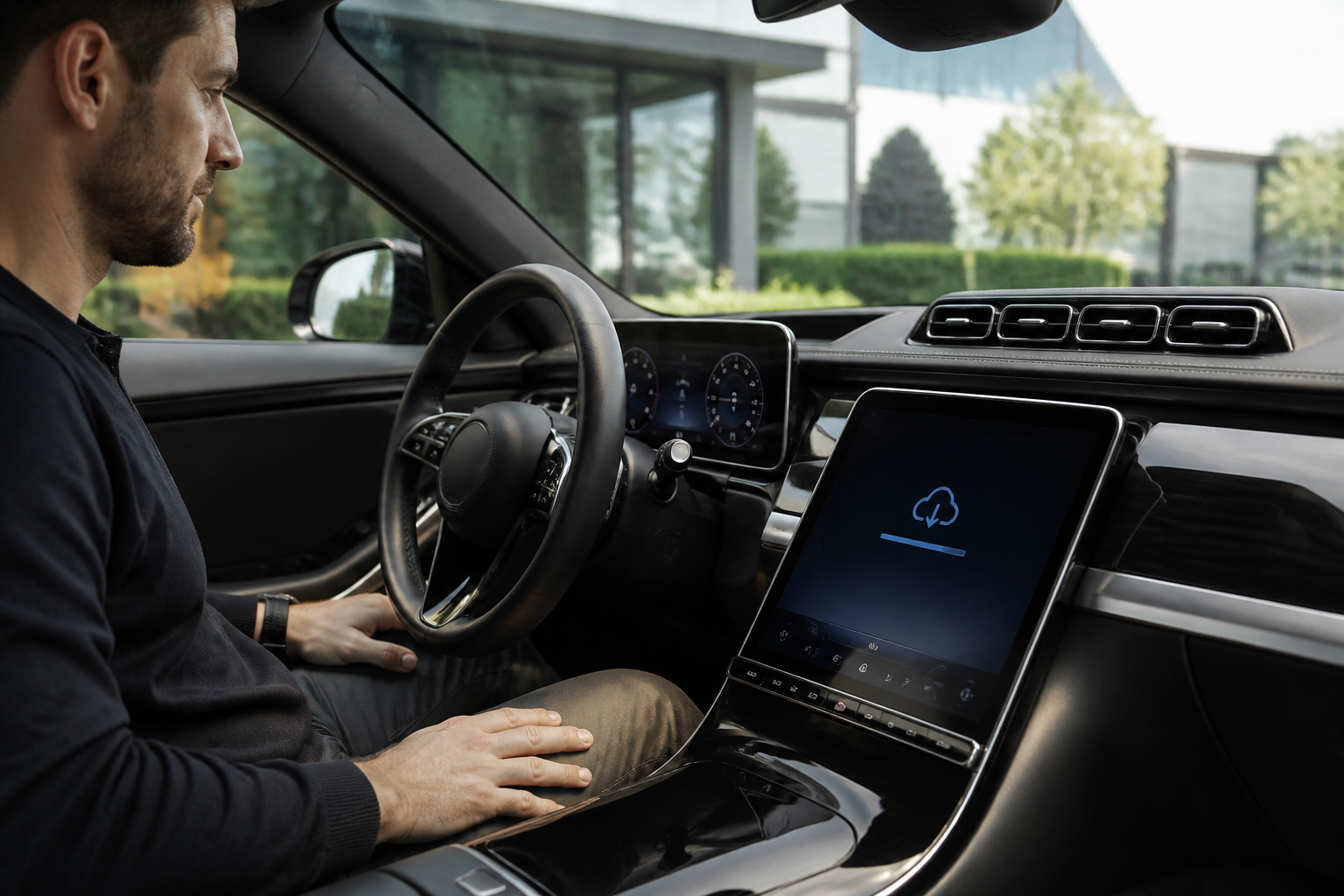
To manage Mercedes-Benz MBUX OTA updates: check for updates in MBUX or Mercedes me connect, start the download, allow installation (system may restart), and confirm activation. Use a stable vehicle internet connection and your Mercedes me account. OTA campaigns may show in the Mercedes me connect app under software updates.
Key takeaways
- OTA updates require vehicle internet and a Mercedes me account; follow on-screen prompts to install (a possible system restart may occur).
- Updates can be validated in the Mercedes me connect app as OTA vehicle updates with campaign-specific names.
- Activating OTA services helps keep the telematics/TCU up to date and supports reliable data transmission.
Expanded overview: what OTA updates cover and why they matter
Mercedes-Benz MBUX over-the-air (OTA) updates are designed to keep the infotainment system and connected-car ecosystem current without requiring a dealer visit. These updates typically include enhancements to the user interface and voice systems, bug fixes, performance improvements, security patches, and compatibility updates for telematics, navigation, media, and connected services. The OTA process leverages the vehicle’s built-in internet connection, a linked Mercedes me account, and secure delivery channels to install software in the background or during a scheduled window. Understanding the flow helps owners minimize downtime and avoid interruptions that could affect critical vehicle functions or driving-assistance features. It’s important to recognize that OTA cadence can vary by model year and market, and some updates are campaign-based to address targeted configurations.
Where OTA updates come from and how they’re delivered
OTA software updates originate from Mercedes-Benz software repositories and are distributed to eligible vehicles through secure command-and-control channels. The update package is transmitted over the vehicle’s communication module to the MBUX system after authenticating with the Mercedes me service. Depending on the campaign, the update may download in the background and then require a system restart to apply changes. For reliable delivery, keep the Mercedes me account active and ensure the vehicle remains linked so you receive timely update notifications. The system uses encryption and authenticated sessions to prevent tampering, and updates are designed to resume after interruptions where possible.
Where to find updates: in-car prompts and the Mercedes me connect app
MBUX will alert you when an OTA update is available. You can also verify or initiate updates via the Mercedes me connect app, which may show a dedicated software updates section. This area typically displays update name, version, and status (available, downloading, installing, completed). Some campaigns appear as campaign-specific update items, reflecting targeted improvements for particular model years or configurations. The app can also confirm a successful update and preview new features or fixes included in the release notes. In some cases, notification prompts appear only after the vehicle has established a stable data connection or when the user signs in to their Mercedes me account within the vehicle interface.
Step-by-step workflow: download, install, activate
- Check for availability: On MBUX or in the Mercedes me connect app, look for new software updates. A stable data connection in the vehicle improves download reliability. If connectivity is inconsistent, consider waiting for a stronger network window or attempting the download when parked in a well-covered area.
- Start the download: If you opt in, the update will begin downloading in the background. A strong data connection minimizes interruption and can shorten installation time. Some updates may require you to initiate download while parked and connected; in others, the system will queue the download for you when conditions are favorable.
- Installation window: After download, installation may require the MBUX system to restart. Do not power off the vehicle during installation unless the on-screen prompts instruct otherwise. In some cases, you may be prompted to leave the ignition on or to start the engine; follow on-screen guidance precisely. If the vehicle is in motion, do not attempt to install and rely on the prompt to schedule a later window.
- Activation and verification: Once installed, the system may present an activation prompt or automatically complete activation. Verify the update name and version on-screen and in the Mercedes me connect app if available to confirm a successful deployment. A reboot after activation is common, and you should see the new software version reflected in the software menu.
Campaign-specific updates may appear under names like “Software Update MBUX …” in the app or vehicle software area. These reflect targeted improvements for certain configurations or markets and are a normal part of the OTA cadence.
Safety, readiness, and vehicle-status considerations during OTA
- Power and stability: Plan updates when the vehicle is parked or idle and not engaged in critical tasks. High-bandwidth background activities should be minimized if the system indicates limited resources during an update window. Avoid initiating updates during aggressive driving or when the vehicle’s battery is under heavy load.
- Power supply and battery management: Modern Mercedes-Benz vehicles manage power for OTA downloads and installations. If your car provides specific guidance about battery state or engine-on requirements, follow those prompts. In some cases, keeping the engine running during a longer installation may be suggested or required to ensure sufficient power for the process.
- Connectivity quality: A reliable data link reduces the risk of partial downloads or failed installations. If the connection drops, the system will typically retry or allow scheduling a new window. You may be prompted to reconnect or reattempt after a set interval.
- Impact on features during update: Some connected services or in-car apps may be temporarily unavailable while the update is applied or during verification. Expect a short period of reduced data throughput until activation completes. Navigation guidance or voice control might experience brief latency during post-update stabilization.
- System restart: After installation, the MBUX system may restart. Do not interrupt the restart process, and allow the system to come back online to confirm the update is active and functioning.
What happens after the update is installed
Once installation completes, the MBUX system reinitializes. You may notice changes such as a refreshed user interface, faster response times, new or improved features, or refined behavior in navigation, voice control, media, and connected services. Use the software update screen or the Mercedes me connect app to confirm the new version and to verify that the expected features are present and operating correctly. If you rely on specific integrations (like connected navigation or third-party apps), verify these behave as expected after the update.
OTA campaigns, validation, and how Mercedes communicates progress
Mercedes-Benz may run OTA campaigns targeted at specific vehicle configurations. In the Mercedes me connect app, campaigns appear under a section such as “Over-the-Air Vehicle Updates.” A successful update is typically reflected in both the app and the in-vehicle prompts. If issues arise, the app or vehicle interface will guide you to retry, contact support, or seek dealer assistance. Campaigns may be rolled out in stages to maintain system stability across the fleet. In some cases, a later patch or cumulative update may replace an earlier campaign-specific package, so that the latest version is what remains installed.
Practical tips to optimize your OTA experience
- Plan around routines: Schedule updates during longer idle periods (overnight or when the car is parked) to minimize interruption and ensure a stable download window. If you expect multiple updates, stagger them to avoid back-to-back heavy data activity.
- Keep credentials current: Ensure your Mercedes me account is active and that the vehicle remains linked to the correct account for OTA delivery. Regularly check for account notices or security prompts from Mercedes.
- Check prerequisites: Some updates require a minimum firmware baseline or a restart after installation; follow prompts exactly to complete the process. Reading release notes in the app can help you anticipate changes you might notice after completion.
- Know where to look: If you don’t receive a prompt, check both the MBUX interface and the Mercedes me connect app for status messages and update availability. Campaigns may appear under a dedicated banner or within a general software updates area.
Limitations and caveats you should know
- Not all updates are simultaneous: Availability varies by model year, market, and hardware. Some older control units may have longer or staggered rollout windows. In some regions, certain features may be restricted for compliance or regional differences.
- Campaign timing and scope: OTA campaigns may appear with campaign-specific names and are often deployed in phases to ensure overall stability and data quality. The exact sequencing can depend on vehicle population, network conditions, and software dependencies across components.
- External factors: Service outages, vehicle offline status, or account issues can delay or block OTA progress until resolved. In rare cases, regional policy or vehicle configuration may temporarily pause updates until verification is complete.
For owners seeking official guidance, the core references include the MBUSA Owner’s Manual OTA notes, NHTSA OTA service campaign documentation, and Mercedes-Benz Connectivity Services guidance on activating OTA for optimal data quality. Always refer to the latest official documents or the Mercedes me connect app for step-by-step prompts tailored to your vehicle and market.
Sources
- MBUX multimedia system (Owner’s Manual) — Software updates via the communication module and activation steps
- News Channel Update (NHTSA) — OTA service campaign notification for Mercedes me connected vehicles (MBUX head unit software)
- Activate now: OTA service for optimal data quality (Mercedes-Benz Connectivity Services)