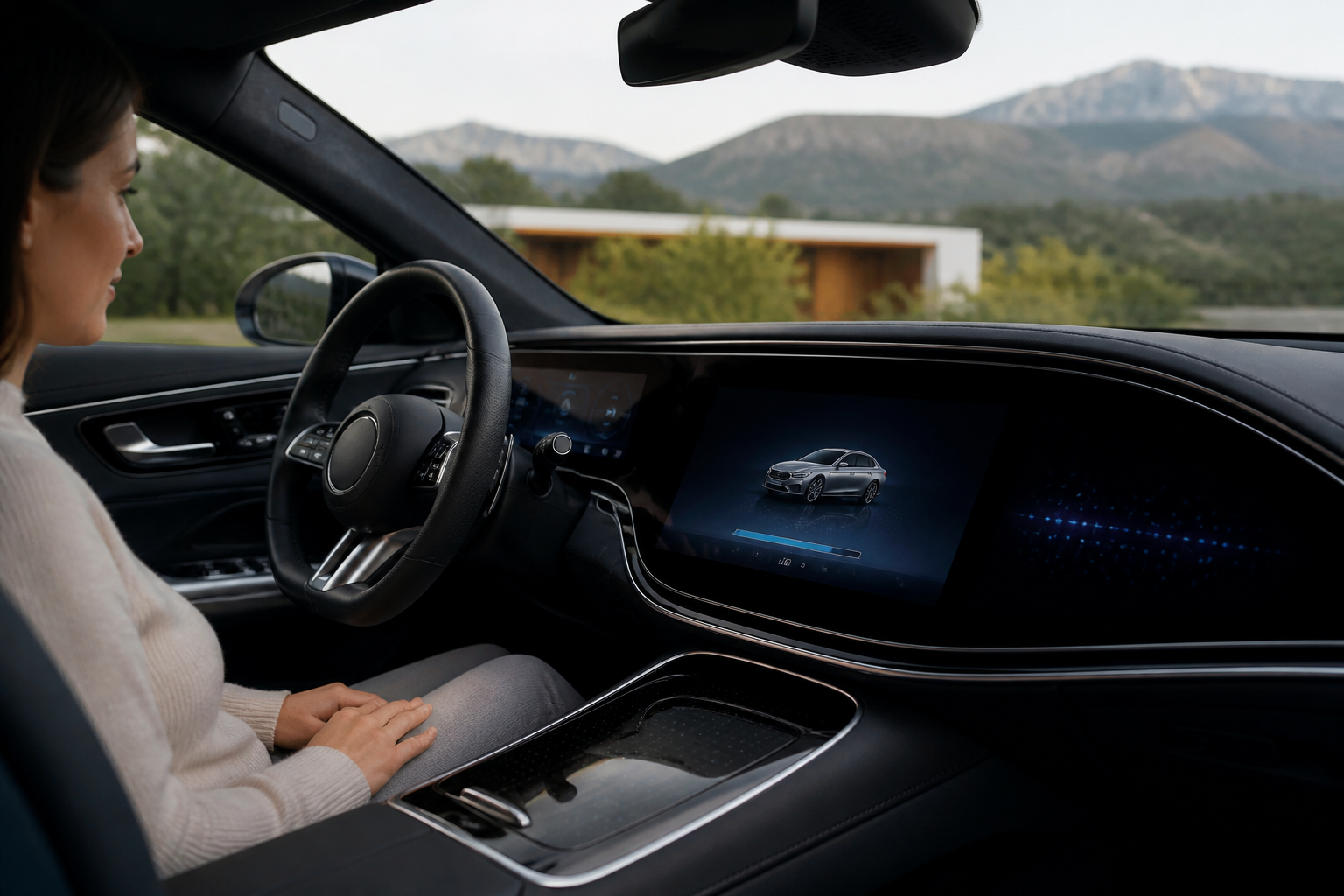
Mercedes-Benz MBUX OTA updates follow a three-stage workflow (download, installation, activation) and can use either the vehicle’s communication module with Internet or an external Wi‑Fi hotspot. Some updates require the vehicle to be safely parked, switched off, and locked during installation, with displays possibly unavailable until activation is complete. Use the appropriate connection path, follow in-car prompts, and expect a restart of MBUX after installation in many cases.
Key takeaways
- OTA updates for MBUX are delivered remotely to keep vehicles current.
- Choose between communication-module Internet or external Wi‑Fi for updates; Mercedes me may be required for some paths.
- The update process consists of download, installation, and activation; safe-park/lock requirements may apply during installation.
- Displays may be temporarily unavailable during installation and a restart after activation is common.
- Follow in-car prompts for completion and verify updated software after activation.
How MBUX OTA updates are delivered and processed
Mercedes-Benz positions over-the-air (OTA) software updates as a way to keep vehicles digitally current by delivering new functions, improvements, and fixes without requiring a visit to a workshop in many cases. Official materials describe OTA as an online method to provide ongoing software updates for MBUX and related systems, with the goal of expanding features and stabilizing performance over the vehicle’s life. This article draws on Mercedes-Benz’s published guidance to translate the process into a practical owner workflow.
Connection options for OTA updates
Two primary pathways exist for delivering OTA updates, and the choice depends on the vehicle model, update size, and the owner’s preferred connectivity setup:
- Communication module (in-vehicle Internet): The vehicle uses its built-in data connection (the Mercedes-Benz communication module) to download updates. A Mercedes me account is commonly involved in enabling certain updates through this path. The download and subsequent installation are performed while the car is connected to the Internet, with the update progress and prompts shown on MBUX.
- Wi‑Fi hotspot (external Internet): The vehicle connects to an external Wi‑Fi network (such as a home, office, or public hotspot) to acquire the update. This path can be convenient when in areas with limited cellular coverage or when a stable external network is available for large downloads.
Regardless of the path chosen, the update process begins with a download/copy phase, followed by installation, and finally activation. The exact sequence and prompts you see depend on whether the vehicle is using the internal connection or an external Wi‑Fi link. Refer to your model’s owner manual for specifics on which update types are supported via each method.
The three-step workflow: download, installation, activation
Mercedes-Benz documentation describes OTA updates as a three-stage process:
- Download (or copy) — The update package is transferred to the vehicle. This step is performed over the chosen connection path and may require the vehicle to be stationary or to have specific conditions met (see “safely parked” rules below).
- Installation — The update is applied to the MBUX software. During this phase, the displays and some in-vehicle functions may be temporarily unavailable or restricted. The vehicle’s systems may automatically restart as part of the installation.
- Activation — The updated software becomes active, and normal operation resumes. Some updates may require follow-up prompts or a quick restart of MBUX after activation.
Across MBUSA materials, the steps remain conceptually the same, while the connectivity method influences how the download is performed and may determine whether a Mercedes me account is involved or whether a Wi‑Fi hotspot is needed.
Safely parked and other vehicle-state prerequisites
Many updates have restrictions designed to protect the software during installation. The official guidance commonly cites a condition described as “safely parked” or equivalent wording. Key prerequisites include:
- The vehicle should be safely parked, switched off, with no occupants inside, and the car locked during installation for those updates that require it.
- Some updates may allow installation while the vehicle is stationary with other vehicle states, but others require the car to be in a protected state to prevent unintended use while the software is being updated.
- After installation, the MBUX system may restart, and displays could be temporarily unavailable. A post-installation reset or follow-up prompts may be shown to complete activation.
These conditions are not universal for every OTA update but are called out in multiple owner manuals to ensure the update finishes correctly and to mitigate risk during the engine-off, locked-state phase.
What owners should expect during an OTA update
In practice, OTA updates influence the in-car experience during installation. Expect:
- Potential temporary restrictions on normal use of the media display and some vehicle functions during the installation phase.
- On-screen prompts within MBUX guiding you through the process, including any required actions to complete activation.
- Possible post-installation steps, such as a restart of the MBUX system, to finalize the update.
Mercedes-Benz documentation emphasizes following the exact on-screen instructions for a smooth update and avoiding attempting to drive during installation if the update requires the vehicle to be parked and secured.
Putting it into practice: an owner workflow
To perform an OTA update, follow a clear, practical sequence that accounts for the chosen connection method and the vehicle’s status:
- Identify the update path: Determine whether the update will be downloaded via the in-vehicle communication module (Internet) or via an external Wi‑Fi hotspot.
- Prepare the vehicle: Ensure the vehicle is in the required state for the chosen path. For many updates, you should plan to park the car in a safe location, switch it off, lock the doors, and keep passengers out during installation.
- Initiate the update: Allow the system to download the update. This may occur automatically when connected to the Internet or when a hotspot is detected; you may also receive a notification in MBUX that an update is available.
- Install and monitor: During installation, follow any prompts and avoid using the vehicle if it restricts functionality. The displays may go dark or show specific progress indicators.
- Activate and complete: After installation, wait for activation, and be prepared for a possible restart of MBUX. Confirm that the system is fully functional and up-to-date by checking the software version in the MBUX settings if your model supports it.
Practical notes: not every update requires a Mercedes me account, and not every update is dependent on an active data plan. Check your vehicle’s manual for update‑by‑update requirements, including whether a pre‑authorization step in the Mercedes me app or a specific data plan is needed for the update family you’re receiving.
Model-dependent caveats and limitations to keep in mind
While OTA updates aim to minimize trips to the dealer, several caveats apply that owners should understand:
- Update size and visibility: Some updates are small and background, while others are larger and require the vehicle to be parked and stationary for a longer period. Vehicle age and hardware can influence which updates are offered and when.
- Connectivity reliability: A stable Internet connection is crucial. In areas with spotty cellular service, an external Wi‑Fi hotspot can be a practical alternative, but you’ll still need to meet any state‑specific prerequisites for the update.
- Functionality during install: Expect temporary changes in display availability or feature access. Critical driver information may be paused during the installation window.
- Post-update behavior: Some updates may alter or reset certain preferences, require a follow-up confirmation, or trigger additional prompts when you next use MBUX.
- Vehicle states and permissions: Certain updates may require vehicle doors to be locked and the vehicle to be off. Others may permit installation with the vehicle on, depending on the system and security considerations.
- Hardware boundaries: Old hardware or legacy software stacks may limit what OTA updates can deliver. In rare cases, a feature might be postponed to an upcoming service pack or require a workshop update for full compatibility.
Bottom line for Mercedes-Benz owners
OTA updates for MBUX are designed to be convenient and progressively expand the car’s capabilities, but they are not purely automatic “set it and forget it.” Knowing the connection option, preparing the vehicle, and recognizing the three‑step workflow helps owners minimize downtime and avoid surprises. If in doubt, consult your model’s owner manual and the official Mercedes-Benz OTA guidance for the most precise steps and prerequisites tied to your specific vehicle and update family.
Cited sources: Mercedes-Benz official OTA updates page; MBUSA EQS Sedan Owner’s Manual; MBUSA EQS SUV Owner’s Manual.
Sources