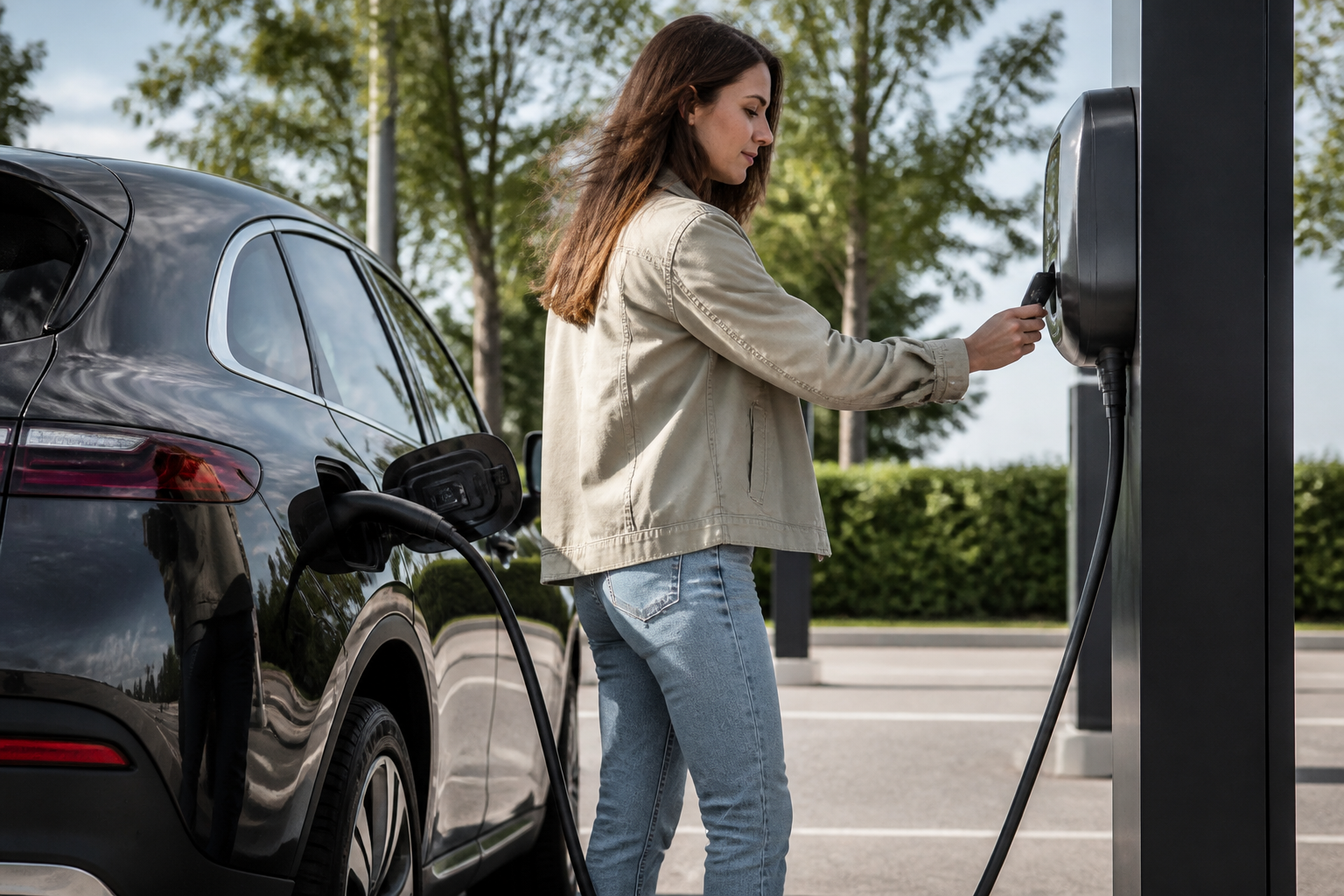
To start a public charging session with Mercedes EQ, use RFID, the Mercedes me Charge app, or the MBUX center display, and optionally Plug & Charge where available. Stop charging via the same method you used to start. Authentication may be required at the station; Plug & Charge enables automatic authorization when supported.
Key takeaways
- You can start public charging on Mercedes EQ via RFID, Mercedes me Charge app, or MBUX center display.
- Plug & Charge is available where supported and can auto-authorize when the connector is plugged in.
- Stopping a session is done with the same method used to start it or via the illuminated stop button at the charger when using the vehicle interface.
Public charging for Mercedes‑Benz EQ models, under the MB.CHARGE Public umbrella, can be initiated and terminated through several methods. This article expands on a practical, method‑by‑method flow, detailing what to press, what to expect on the screen, and how authentication behaves in real-world use. It also covers limitations and caveats that can affect start/stop timing, station compatibility, and user experience.
Overview of available start/stop methods
You can typically begin and end a public charging session using one of the following approaches, depending on vehicle equipment, region, and station compatibility:
- RFID card presented at the charger or within the vehicle charging area to initiate a session.
- Plug & Charge (where supported): automatic authorization occurs when the cable is connected to a Plug & Charge‑enabled station and the vehicle recognizes the station.
- Mercedes me Charge app: initiate and monitor charging from a smartphone, when supported by your vehicle and account.
- MBUX in‑vehicle interface: start/stop from the car’s own charging screen, selecting the appropriate charger/connector as shown on the display.
Regardless of method, the on‑screen identity of the charging station or connector should match the physical station outside, to ensure you’re connected to the intended outlet.
Step-by-step flow: RFID card
- Approach the public charging station and present the RFID card at the payment/authentication area, or keep the card handy in the vehicle as per the Quick Start guidance.
- Wait for confirmation from the charger and the vehicle that authentication passed and charging has started. The vehicle display may indicate a successful start, or the charging status LED on the connector may indicate active charging.
- To stop, press the illuminated stop button at the charging socket (as described in the Quick Start Guide) or use the vehicle/charger interface if supported.
Common caveats: RFID failure or mismatch with the account may require retrying with a different method (Plug & Charge or app). If the station cannot authenticate your card, you may see a status message or fail‑to‑start prompt.
Step-by-step flow: Plug & Charge
- Connect the vehicle to the station with a Plug & Charge‑enabled connector. The vehicle will negotiate authentication in the background, using contract data recognized by the station.
- If the station and vehicle are both configured for Plug & Charge, charging starts with no extra prompts beyond the physical connection.
- To stop, you typically use the stop action shown in the vehicle interface or at the charger, depending on the station’s design and MB.CHARGE integration.
Notes: Plug & Charge behavior is contingent on both vehicle configuration and whether the station’s network supports automatic authorization. If the car does not recognize the station as Plug & Charge‑enabled, you may be prompted to select a charging plan or authenticate via another method.
Step-by-step flow: Mercedes me Charge app
- Open the Mercedes me Charge app and log in with your MB account. Ensure your vehicle is linked to the account and that the charging location is supported by the app’s station database.
- Select the desired public charger from the map or list and initiate charging. The app may display a confirmation and the expected connector/side of the station.
- Charging starts and can be monitored via the app. To stop, use the app’s stop control and/or any in‑app prompts, and confirm the stop on the vehicle if required.
Behaviour can vary by region and app version. If the app cannot initiate a session, try another method or verify that your account has the charging entitlement for that station.
Step-by-step flow: MBUX center display
- From the EV charging screen in MBUX, select the public charging option and scan/confirm the station identity shown on the vehicle screen against the station outside the lot.
- Choose the appropriate connector if multiple options are presented and authorize the start. The vehicle and station may exchange authorization data in real time.
- To stop, use the in‑car stop control as shown on screen or follow any prompts tied to the current charging method.
MBUX flows rely on the vehicle’s firmware and the MB.CHARGE integration. If authentication prompts appear, they typically indicate station‑side checks against your MB account or contract data.
Authentication prompts: what they mean and how to respond
Authentication is the process by which the charging station verifies that the vehicle is authorized to access the energy and bill the session to your account or contract. Typical prompts and outcomes include:
- Successful authentication: charging starts or continues without interruption, and the vehicle shows an active charging status.
- Pending or in‑progress authentication: the system is verifying your credentials with the station or network. Allow a brief delay, then recheck status.
- Authentication failed: the session will not start or will stop. This may require retrying with a different method (e.g., switch from RFID to Plug & Charge, or authenticate in the app), or selecting a different station.
Plug & Charge may bypass separate prompts by auto‑authorizing once the connector is recognized as Plug & Charge‑enabled. If you see a prompt asking to confirm a contract or sign in, follow the on‑screen instructions to complete the check.
Practical tips to avoid delays or misstarts
- Verify the station identity on screen matches the physical station label before starting. This is especially important at multi‑stall sites with several charging ports.
- Ensure you are using the correct connector compatible with your EQ model and the station’s charging standard.
- If authentication fails, try a different method if available (RFID vs app vs MBUX) and check that your MB me Charge account is active and linked to your vehicle.
- At Plug & Charge stations, confirm that the cable is fully plugged in and the station recognizes the vehicle’s identity; if the electrical interlock or cable latch is not secure, the session may not start.
- If the vehicle shows an error or the station displays a fault code, consult the station’s on‑screen help or retry after a few minutes, as some networks experience temporary connectivity issues.
Limitations and caveats you should know
- Not every public charging station supports Plug & Charge. In those cases, you’ll rely on RFID, app, or in‑vehicle prompts to authenticate and start charging.
- Availability of app‑initiated or in‑vehicle initiating charging depends on regional support, account status, and firmware versions. Always ensure your vehicle’s software is up to date for MB.CHARGE compatibility.
- Some stations require additional confirmation or payment steps beyond initial authentication, which may delay a start momentarily or require manual input at the charger.
- RTL and security policies can cause variability in how quickly a session is granted access, particularly at busy or international sites with roaming contracts.
What to verify at the station before charging
- Confirm the station’s identity and connector designation matches what the car shows on screen or in the app.
- Check for any on‑screen prompts indicating required authentication steps or account verification.
- If you cannot start after multiple attempts, try a different method or another station and consult the MB.CHARGE support resources for troubleshooting steps.
Sources and how to access official guidance
Official MB.CHARGE and MBUSA materials provide the baseline flows for start/stop and authentication behavior. Primary documents include the MBUSA EQ Quick Start Guide and the Plug & Charge overview from Mercedes-Benz support:
- MBUSA Quick Start Guide (EQ) – RFID, app, MBUX, and Plug & Charge basics
- What is Plug & Charge (Mercedes-Benz Support)
- EQE Owner’s Manual (MBUX) – authentication and start/stop in app/MBUX
Bottom line for owners
Mercedes‑Benz provides flexible public charging options that can be started and stopped via RFID, an app, or directly from the MBUX system, with Plug & Charge offering a largely seamless flow where supported. The most common friction points relate to authentication prompts, station compatibility, and ensuring the correct charger/connector is used. By understanding the method you choose and how the station and vehicle communicate, you can minimize delays and reliably manage public charging sessions.