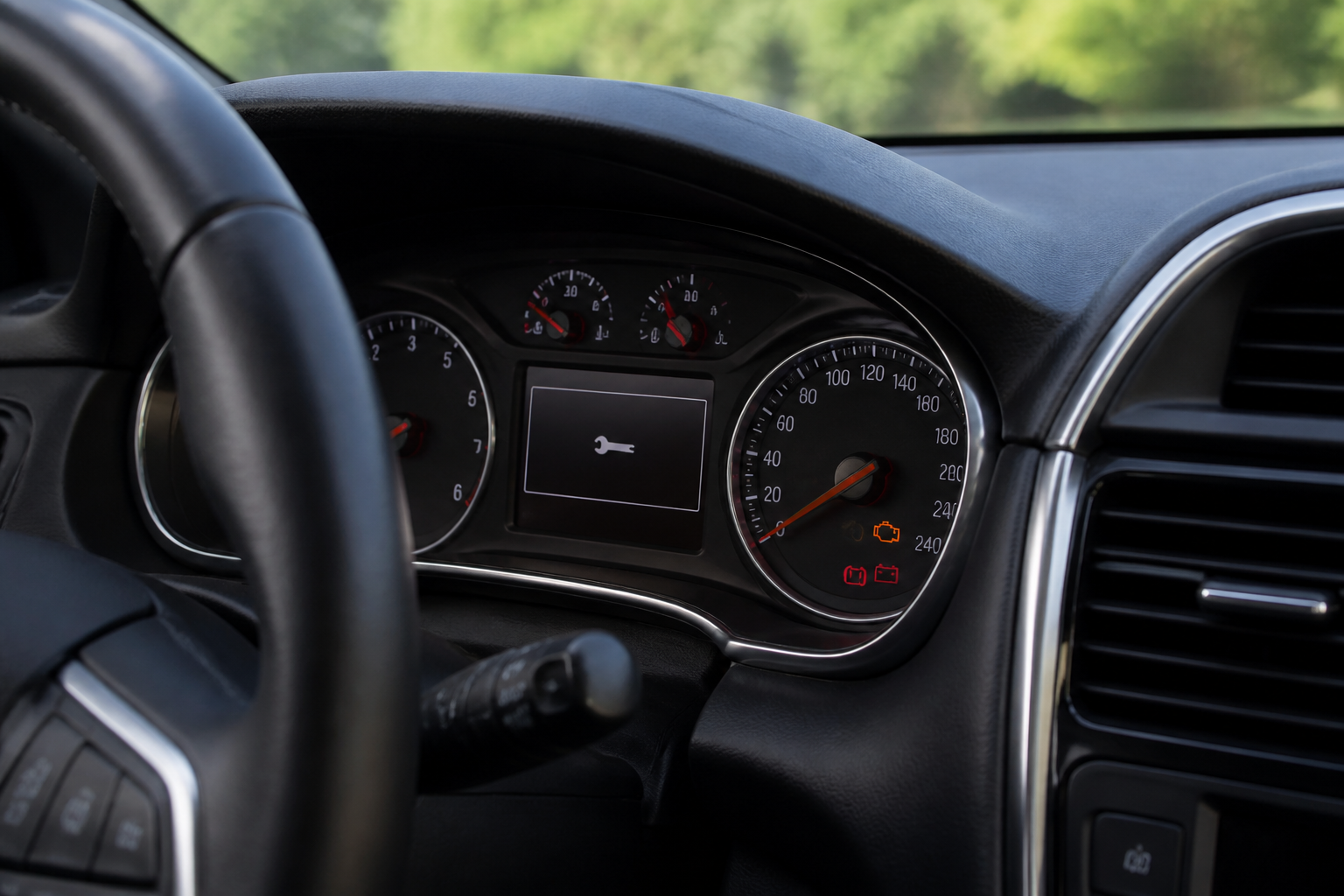
To read Mercedes maintenance indicators and service reminders, first distinguish MB.OS-initiated reminders from traditional dashboard lights. MB.OS prompts often indicate a scheduled service window, software update, or wear-based alert, while conventional lights flag immediate system faults. Note the symbol, color, and on-screen message; consult the owner’s manual for model-specific meanings. If the signal is amber (caution) or red (urgent), plan a service appointment promptly at an authorized Mercedes-Benz center; use MB.OS information to time visits efficiently and reset reminders after service where applicable. For data privacy, understand MB.OS telemetry and its role in maintenance planning and what gets shared. Always verify the recommended service interval in your owner’s manual or with the dealer and schedule within your current maintenance window to avoid unnecessary trips.
Key takeaways
- MB.OS reminders complement traditional warning lights by signaling scheduled maintenance and software needs, not just immediate faults.
- Interpret color and accompanying text to determine urgency; amber often means plan soon, red means diagnose now.
- Plan maintenance within your MB.OS-maintained window to optimize timing and avoid unnecessary visits.
- Resetting reminders may require dealer-facing steps or in-car menu actions; confirm reset after service to maintain accuracy.
- Understand data-sharing aspects of MB.OS to balance privacy with proactive maintenance planning.
Maintenance indicators on a Mercedes-Benz dashboard help you manage servicing, part replacement, and software updates without guessing. This expanded guide dives into how to read maintenance indicators and service reminders, how MB.OS-driven prompts differ from traditional panel warnings, and practical steps to plan maintenance efficiently. It’s tailored for owners, prospective buyers, and tech‑savvy enthusiasts who want precise, actionable guidance grounded in how Mercedes-Benz vehicles handle diagnostics today.
MB.OS maintenance reminders versus traditional dash warnings
Mercedes-Benz vehicles integrate two parallel signaling systems for maintenance and safety: the cloud-connected MB.OS reminders and the vehicle’s local diagnostic signals. MB.OS prompts are tied to a centralized maintenance schedule, software update cadence, recalls, and vehicle health insights that can span longer horizons (weeks to months and miles). Traditional dash warnings arise from real-time sensor data and fault codes for immediate concerns that can affect safety or drivability. Understanding which system is triggering a reminder helps you differentiate planning needs from urgent action.
Important caveat: MB.OS prompts can sometimes reflect data not yet present on a technician’s bench during a routine visit. Always corroborate with the last service record and the current vehicle health readout when scheduling work.
Common MB.OS maintenance signals you may see
- Scheduled service window — a recommended visit aligned with a defined calendar date or mileage interval, often shown with a maintenance icon and a brief description of the upcoming service type.
- Software update prompt — alerts to MB.OS, infotainment, or vehicle control software updates that may enhance performance, security, or features. These can sometimes be performed at a service visit or, depending on the model, as an over‑the‑air (OTA) update.
- Wear-based reminders — indicators that rely on sensor data and driving patterns, such as brake pad life, tire wear, or cabin filter condition, suggesting service before a fault occurs.
- Recall or service campaign notices — messages tied to safety campaigns that require dealership action, independent of regular maintenance intervals.
Key traditional dash signals worth knowing
- Check engine / MIL — a broad fault indicator signalling emissions, ignition, or sensor issues that require prompt diagnosis to avoid damage or drivability problems.
- Brake system indicators — warnings related to brake pad wear, fluid levels, or ABS faults. These typically mandate inspection and can influence repair sequencing.
- Oil/engine lubrication warnings — low oil level or oil pressure alerts that require immediate attention to prevent engine damage.
- Stability control or airbag warnings — indicate safety systems that may need service but could not necessarily stop you from driving in the short term; plan maintenance promptly if displayed.
How to interpret common service indicators
Effective interpretation starts with recognizing the symbol, its color, and the accompanying on‑screen message. Mercedes-Benz typically combines a pictogram with a brief text note. Color cues help triage urgency: amber signals caution and a maintenance nudge, red points to urgent attention or fault, and blue/green or white often denotes information or a system status update. Model and year specifics can shift exact wording, so consult your owner’s manual or the MBUX/cluster help if you’re unsure.
Step-by-step approach when a light appears
- Identify the symbol and color; closely read any on-screen text. If there are two messages (symbol plus a text line), treat both as part of the guidance.
- Differentiate between MB.OS reminders (planning-focused) and fault warnings (immediate diagnostics needed).
- Review the vehicle’s maintenance history and current mileage to determine if a scheduled service window is already due or imminent.
- When feasible, schedule at authorized Mercedes-Benz centers to ensure genuine parts, precise software compatibility, and a vehicle health report. If the indicator is red or the vehicle exhibits abnormal behavior (noise, vibration, loss of power), seek immediate diagnostic assistance or roadside support.
Practical planning tips for owners
- Keep your maintenance schedule documented: MB.OS reminders are easiest to manage when you track mileage and calendar dates. Maintain a simple log that notes the last service date, mileages, part replacements, and software updates performed.
- Distinguish quick-turn items from major services. A tire wear indicator or cabin air filter alert is typically scheduled and can be grouped with an oil change or brake inspection for efficiency.
- Factor software updates into your planning. Some updates can be postponed to a convenient service visit; others may require an immediate update to protect data security or features.
- Use official channels to reset indicators after service, if applicable. Understanding reset procedures helps prevent false reminders; always follow model-specific instructions from the owner’s manual or dealer guidance.
Limitations and model-dependent caveats
MB.OS and dash indicators are not universally identical across all Mercedes-Benz models or chassis codes. Some vehicles generate MB.OS reminders only when connected to a dealership or the owner’s Mercedes me account, while others incorporate OTA updates that trigger on‑vehicle prompts. Though the general logic remains consistent, exact iconography, wording, and reset steps vary by generation and market. When in doubt, rely on the on-screen help, the official owner’s manual, or a qualified service advisor familiar with your specific model and software version.
Practical examples to illustrate decision criteria
Example A: Your cluster shows an amber reminder labeled “Scheduled maintenance due in 750 miles.” You should plan a service visit within the next 1–2 months or at the upcoming service interval, whichever comes first. Pair this with any overdue software updates if available, and ensure tires, brakes, and filters are checked or replaced per the service plan.
Example B: A red indicator accompanied by “Brake system fault” appears while driving at highway speeds. Do not continue driving aggressively; reduce speed where safe, contact roadside assistance, and arrange immediate diagnostic service at an authorized center after stabilization. This is a fault requiring prompt attention beyond routine maintenance.
Example C: An information prompt requests a software update for MB.OS that can typically be scheduled during a service visit or performed over the air if your vehicle supports it. If you are in a critical driving window, consider applying OTA updates when you next have connectivity and time, since software hygiene can affect performance and data safety.
MB maintenance indicators vs generic panel warnings
| Indicator Type | What it typically means | Recommended action |
|---|---|---|
| MB.OS maintenance window | Scheduled maintenance window or software update | Schedule service within the window; confirm MB.OS prompts with dealer |
| MB.OS wear-based prompts | Tire depth, brake wear, etc. | Plan inspection or part replacement during the next service visit |
| Check Engine / MIL (red/amber) | Emissions/ignition or sensor fault | Diagnostic check required; do not ignore in drive mode |
| Brake/ABS warning (red/amber) | Brake system or ABS fault | Immediate diagnostic required; stop if braking feels abnormal |
| Oil change light (amber) | Oil life reduced or oil pressure concerns | Schedule oil service promptly; verify oil grade and capacity |
Frequently asked questions
What do service lights mean on a Mercedes-Benz dashboard?
Service lights indicate maintenance needs, including scheduled MB.OS reminders, wear-based alerts, and traditional fault warnings. Interpret color and text, then plan service accordingly.
When should I book service based on indicators?
If the indicator is amber (caution) or red (urgent), schedule a service promptly. MB.OS reminders can indicate upcoming scheduled maintenance; plan within that window to minimize downtime.
How do I reset reminders after service?
Some reminders reset automatically after service; others require a manual reset via the in-car menu or dealer system. Confirm with your service advisor for accuracy.
Can MB.OS data sharing affect maintenance reminders?
Yes. MB.OS uses telemetry to inform maintenance scheduling. Some settings may reduce reminders if data sharing is limited; understand what is being collected and adjust privacy settings as desired.
What should I do if ABS or brake lights come on?
Brake/ABS warnings require immediate inspection. Safely pull over when possible and arrange a diagnostic check at an authorized Mercedes-Benz center before further driving.
Related Mercedes-Benz guides