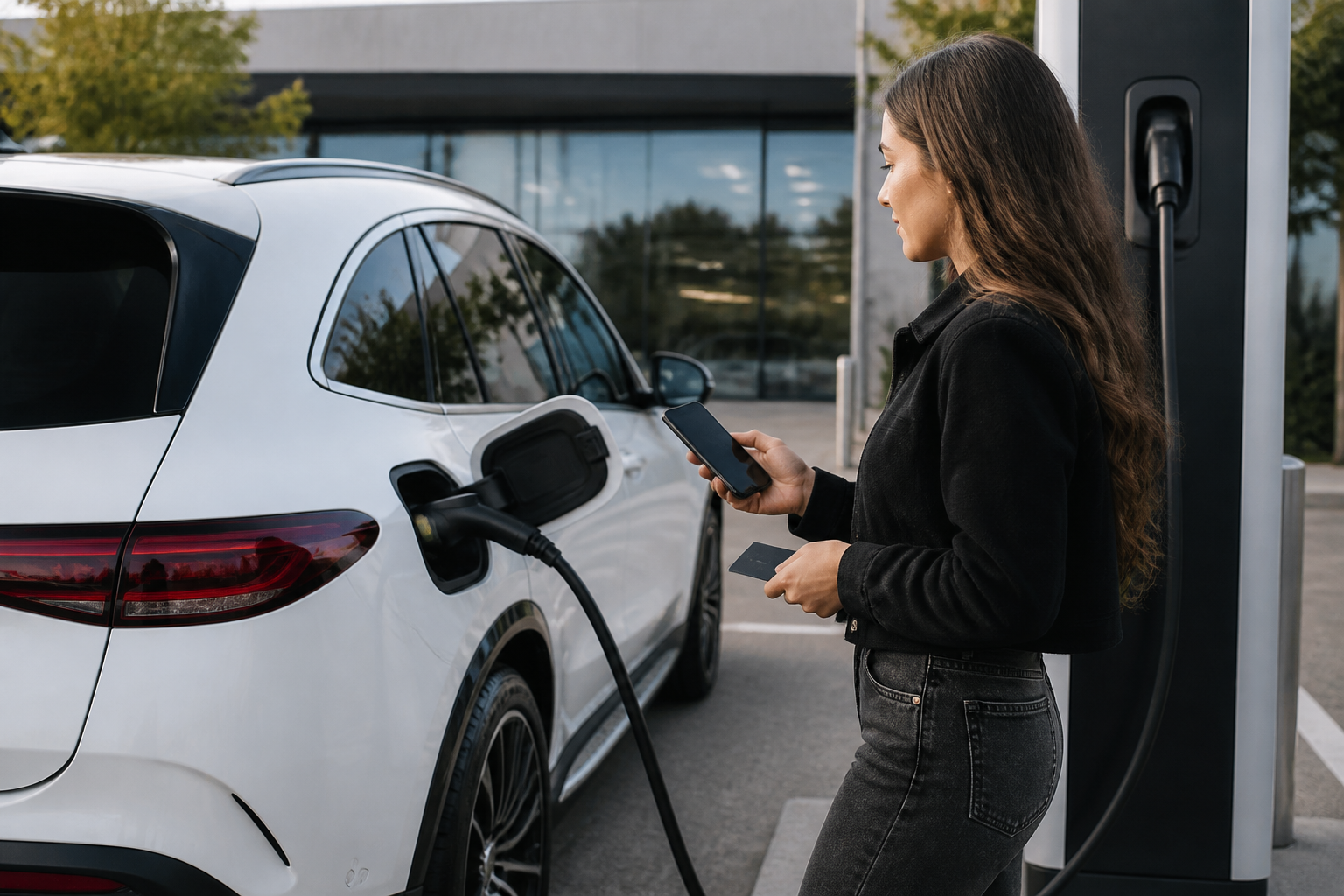
Mercedes-Benz supports four public charging initiation methods: Plug & Charge (automatic start and payment), MB.CHARGE Public RFID card (authenticate at the charger), Mercedes me Charge app (select station and authenticate in app), and the in-car MBUX display (select station, match charger ID, and start). Station networks may differ in support and authentication flow; always verify the charger ID on-screen with the station and be prepared for authentication before unlocking the cable on some stations.
Top takeaways
- Plug & Charge starts automatically when plugged in and is handled by the station.
- Some networks do not support RFID or Plug & Charge; have app or MBUX steps ready.
- Always verify charger ID matches before starting and be prepared for station-specific authentication requirements.
Public charging for Mercedes‑Benz electric vehicles can be navigated with four supported initiation methods: Plug & Charge, the MB.CHARGE Public RFID card, the Mercedes me Charge mobile app, and the in‑car MBUX display. Each method has its own practical flow, and real‑world behavior depends on the charging network, location, and, in some cases, the vehicle model year. This expanded guide provides a station‑context aware workflow that helps you decide which method to use and how to execute it smoothly from start to finish, with concrete, field‑tested steps and cautions to minimize downtime.
Overview: four paths to start and pay
Plug & Charge lets the charging session start automatically when you plug in, with the network handling payment. Practically, the vehicle and charger exchange credentials and authorization in the background, so charging can begin with minimal interaction. Availability of Plug & Charge varies by network, region, and vehicle firmware; some networks or model years do not support it. If Plug & Charge is not available or fails, switch to an alternate method such as MB.CHARGE Public RFID, the Mercedes me Charge app, or the in‑car MBUX flow.
MB.CHARGE Public RFID card requires presenting the card at the charger’s reader to authenticate a session. This method is network‑specific and not universally supported; for example, some Electrify America stations may not support RFID authentication. If the reader does not recognize the card, try an alternative method to begin charging, or verify your MB me Charge account status and card provisioning in the app.
Mercedes me Charge app provides a remote initiation path. In practice, you open the app, find a nearby charger, select the station, and tap “Charge” to start. You must confirm that the charger ID displayed in the app matches the physical charger ID. Once authenticated, you plug in the vehicle and charging begins. The app also offers session monitoring and an option to stop the session from the phone if needed.
MBUX in‑car display lets you start charging directly from the vehicle interface. You navigate to the charging location, verify the charger ID shown on the screen matches the station, choose the connector (if multiple are available), and initiate the session. If prompted, complete on‑screen authentication. Some networks require authentication before the connector is unlocked, so there may be a brief pause between plugging in and charging start.
Step‑by‑step workflows by method
Plug & Charge (where available)
- Ensure Plug & Charge is enabled in the Mercedes me Charge app if your vehicle supports configuring it in your firmware.
- Plug the charging cable into the vehicle. If supported, charging should begin automatically and payment is processed by the station.
- Monitor the vehicle’s charging screen for status, current rate, and estimated time to full charge.
MBUX display
- In the vehicle, open the charging navigation and select a nearby charger.
- Check that the charger ID shown on the vehicle screen matches the station’s charger ID to avoid mischarging at the wrong connector.
- Choose the connector (if the station offers multiple) and initiate the session.
- If prompted, complete authentication to unlock the connector and begin charging.
MB.CHARGE Public RFID card
- Present the RFID card at the charger’s reader area to authenticate.
- After successful authentication, plug in the vehicle if the session did not auto‑start; some networks may auto‑start after authentication.
- To stop, you may need to swipe the card again, press a Stop button on the charger, or stop via the app/vehicle, depending on the network.
Mercedes me Charge app
- Open the app and locate nearby chargers. Tap a station to view its details.
- Tap “Charge” to activate the session. Confirm that the in‑app charger ID matches the physical charger ID.
- Plug in the vehicle to begin charging, following on‑screen prompts from the app or vehicle. Use the app to monitor progress and to stop the session if needed.
Station‑specific nuances you should know
- Networks differ in how authentication and cable unlocking are handled. Some networks require authentication before the cable unlocks; others begin charging automatically once a session is activated.
- Plug & Charge availability varies by network and model year. If a station or vehicle does not support it, rely on MB.CHARGE Public RFID, the app, or MBUX to start the session.
- Always verify the charger ID displayed in your vehicle/app/MBUX against the physical station to avoid charging at the wrong connector or charger, which can lead to misbilling or failed sessions.
- Some networks may not support RFID cards for all stations. If RFID fails at a given station, switch to one of the other methods to complete the session.
Stopping a charging session
- Plug‑and‑charge sessions: stop via the vehicle charging screen or the Mercedes me Charge app, depending on how the session was started.
- RFID card sessions: you may need to swipe the card again or use the charger’s Stop button, depending on the network. The app can also stop sessions started via the app or RFID when applicable.
- App‑initiated sessions: stop from the app if you started and controlled the session through the app.
Practical tips and caveats
- Always verify the charger ID matches the station. A mismatch can lead to the wrong bill, a paused session, or the charger not starting.
- If you plan to rely on Plug & Charge, confirm compatibility for your exact model year and the current network you are using, as not all stations or firmware versions support it.
- Carry the MB.CHARGE Public RFID card as a reliable fallback for networks that prefer or require card authentication; ensure it is linked and up to date in your Mercedes me Charge account.
- When a method does not work at a particular station, have an alternative ready (switch from Plug & Charge to the app, RFID, or MBUX) to minimize downtime.
- For fleet or multi‑vehicle use, consider documenting your preferred method per station to speed up future sessions and reduce friction at busy charging sites.
For the most reliable guidance, refer to Mercedes‑Benz’s official public charging documentation and MB.CHARGE Public support resources. They detail the four initiation methods, confirm station‑specific behaviors, and provide troubleshooting steps tailored to real‑world installations.
Sources: Mercedes‑Benz public charging Quick Start guides and support materials, including MBUSA’s public charging overview and the MB.CHARGE Public support article. These documents describe the identical four initiation methods, their station‑dependent behaviors, and practical troubleshooting steps.
Sources
- Charging Your EQ: How to set up your account and charge in public (Quick Start Guide)
- Charging Your Electric Vehicle On The Go (Plug & Charge / RFID / App / MBUX)
- How do I charge my EV using MB.CHARGE Public? (Step-by-step)
Related Mercedes-Benz guides