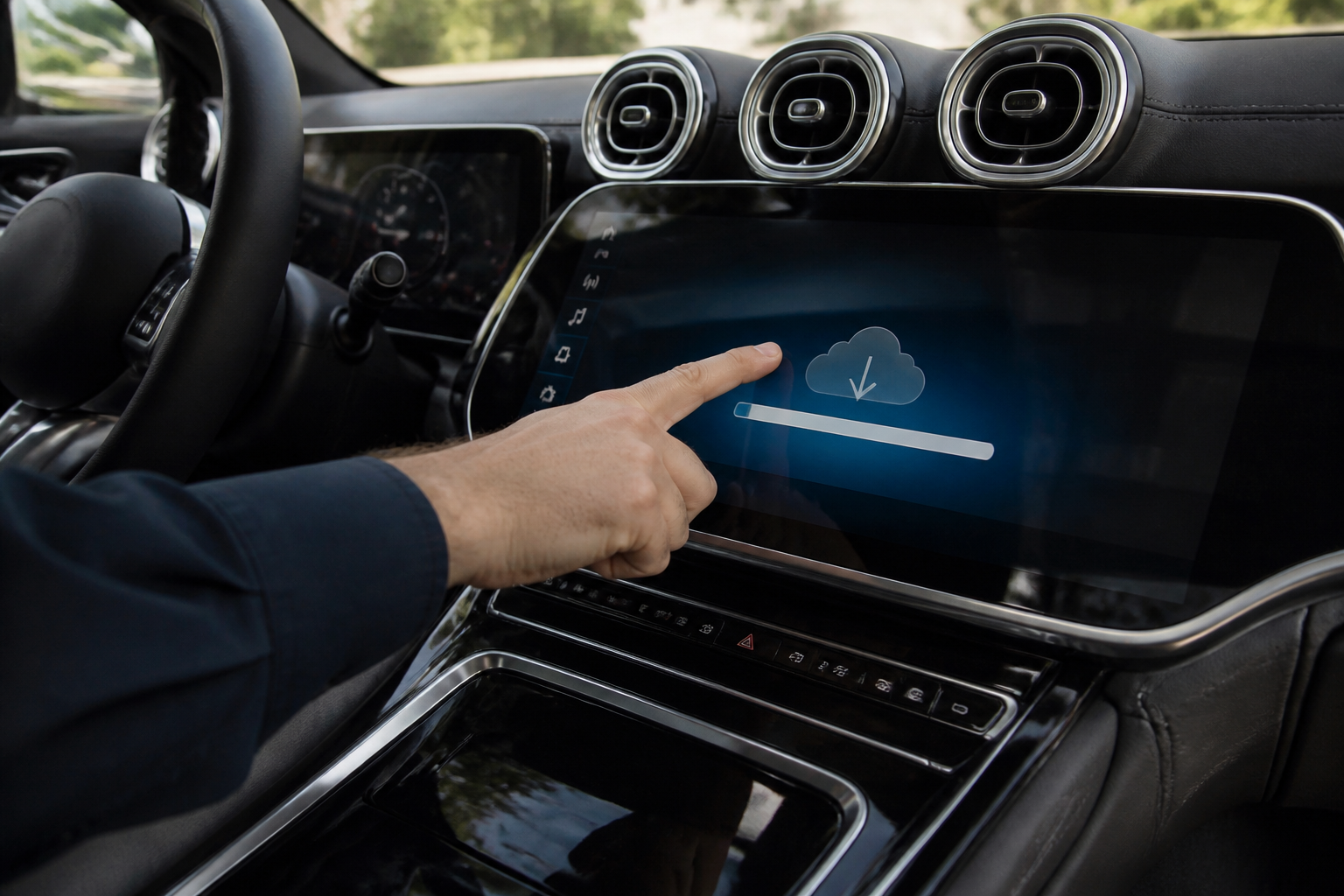
To install Mercedes MBUX OTA updates and address “update not showing” issues: open the MBUX infotainment system, navigate to the OTA/Software Updates area, ensure vehicle connectivity and Mercedes me connect services are active, and follow prompts to check for and install available updates. If updates don’t appear, verify connectivity, service activation, and update availability per official Mercedes guidance and the NHTSA service campaign notice references.
Key takeaways
- OTA updates are delivered to MBUX after you grant permission in the car’s infotainment prompts.
- OTA settings and update status are managed within MBUX, requiring active connectivity services.
- If updates aren’t showing, confirm Mercedes me connect activation and connectivity, then consult Mercedes-Benz OTA guidance and the NHTSA campaign notice for context.
Overview: OTA Updates for MBUX
Mercedes-Benz offers Over-the-Air (OTA) updates to refine MBUX head-unit software after a vehicle is in use. OTA updates deliver software enhancements, new features, performance improvements, and bug fixes by communicating through the car’s connected systems. For owners, OTA management is embedded in the MBUX interface, with the system guiding you through availability, download, and installation. A key behavioral note is that driver confirmation is typically required before installation to ensure the update aligns with driving conditions and safety considerations.
Why OTA Updates Matter for Mercedes-Benz Owners
OTA updates can expand infotainment capabilities, improve voice recognition, refine navigation behavior, and address known software quirks without a visit to a dealership. They also enable ongoing compatibility with connected services (such as Mercedes me) and may include security-related improvements. However, OTA effectiveness depends on active connectivity, service subscriptions, and approved update cycles defined by Mercedes-Benz software governance.
Where to Find and Enable OTA Settings in MBUX
The OTA experience is accessed from the MBUX infotainment system, typically under a dedicated software or updates section. This area shows whether updates are available, the size and nature of the update, and the estimated installation time. Common steps include:
- Open the MBUX home screen and navigate to the Settings or Vehicle tab.
- Select System or Software Updates (the exact naming may vary by model year).
- Choose Check for Updates to view current availability, or enable automatic updates if your vehicle supports it.
- When an update is presented, read the on-screen notes, then approve the installation when prompted.
Mercedes-Benz systems generally require the vehicle to be in a ready state with sufficient battery level and a stable data connection. In some cases, updates are scheduled to occur during periods of low vehicle activity or when the vehicle is parked and connected to a power source.
Connectivity and Prerequisites for OTA Delivery
OTA delivery relies on the Mercedes me connect ecosystem delivering software payloads to the vehicle. Key prerequisites include:
- Active Mercedes me connect services for the vehicle and the owner’s account in good standing.
- A functioning data connection in the car (built-in eSIM or connected Wi‑Fi where available).
- Consent or acceptance of the software update through the in-vehicle prompts.
In some regions or configurations, certain updates may require additional permissions or be rolled out in phases. Owners should ensure their account is linked correctly to the vehicle and that there are no regional restrictions affecting OTA availability.
Troubleshooting: OTA Updates Not Showing
If an OTA update does not appear in the vehicle, use the following practical checks aligned with Mercedes-Benz guidance:
- Verify that the vehicle has active connectivity services enabled and is connected to the internet via Mercedes me connect. A lack of connectivity is a frequent cause for no update visibility.
- Ensure the MBUX system is capable of receiving OTA updates and follow the in-screen prompts to check for availability. If the system indicates no updates, confirm that you are using a compatible model year and that the vehicle’s software supports the update in question.
- Check the OTA section for your vehicle’s eligibility and any required services (for example, certain updates may require a minimum software baseline or specific hardware constraints).
- Confirm that the vehicle has a sufficient battery level and, if applicable, is connected to a power source to prevent interruption during installation.
- Restart the MBUX system or the vehicle if indicated by the system prompts, then re-check for updates.
If issues persist, consult the official Mercedes-Benz guidance for step-by-step verification and consider reaching out to Mercedes-Benz Customer Support, especially if a notice or message references a specific software update identifier.
Evidence-Based Steps and Official Guidance
Official guidance from Mercedes-Benz emphasizes that OTA updates are initiated from within MBUX and require driver approval to proceed. The driver manages update availability and settings from the vehicle’s interface, with the ability to adjust delivery preferences and timing where supported.
Two primary sources outline the process and context for OTA behavior:
- Mercedes-Benz UK’s OTA updates page, which details how to view, download, and install updates from MBUX, including the in-car approval flow.
- Mercedes-Benz USA’s OTA updates overview, describing OTA as a post-purchase software delivery mechanism that can introduce new capabilities and customization options.
In addition, the U.S. NHTSA published an OTA service campaign notice related to head-unit software in Mercedes me connected vehicles, illustrating that OTA updates may be delivered via a service campaign and surfaced in the Mercedes me connect app’s OTA area with identifiable software update names (such as MBUX variants). This document helps owners understand that some OTA activity is driven by safety and recall-like governance rather than consumer-initiated experimentation alone.
Practical Examples: What to Expect During an OTA Update
Typical OTA update episodes follow a predictable sequence. The vehicle checks for updates on connection to the Mercedes me service, presents an update if available, and then asks for confirmation to begin. The update may download in the background and then install when the vehicle is idle or parked, often requiring the engine to be on or the vehicle to be in a safe state for installation. After installation, a brief reboot of the head unit may occur, and the system might reinitialize settings or re-scan for companion services.
In some scenarios, you might notice enhanced features (for instance, improved voice commands, better map performance, or refined menu layouts) after a successful update. If a feature you expected doesn’t appear, verify the update version name in the settings and cross-check with official release notes provided within the OTA interface or on Mercedes-Benz support pages.
Limitations and Model-Dependent Caveats
OTA update availability is not identical across all models or markets. Some older vehicles may have limited OTA support due to hardware constraints, regional feature gating, or service plan requirements. Additionally, certain updates can be staged in waves by the OEM to minimize service disruption or to validate compatibility with vehicle software baselines. Always verify compatibility notes for your specific model year and trim level via official channels or your dealer.
Checklist for Owners: Quick Reference
- Confirm active Mercedes me connect services and a valid account link to your vehicle.
- Ensure the vehicle has a stable data connection and adequate battery/power state for installation.
- Open MBUX: Settings > System/Software Updates > Check for Updates; read any notes before installation.
- Approve the update when prompted; allow sufficient time for download and installation.
- If no update appears, re-check connectivity, restart MBUX, and verify regional eligibility or phased rollout notes.
Sources and Further Reading
- Mercedes-Benz UK: Over-the-Air Updates page — https://www.mercedes-benz.co.uk/passengercars/technology/over-the-air-updates.html
- Mercedes-Benz USA: Over-the-Air Updates overview — https://www.mbusa.com/en/eq-electric-cars/technology/over-the-air-updates
- NHTSA OTA Service Campaign notice (head unit software, Mercedes me connected vehicles; “Software Update MBUX …” listed) — https://static.nhtsa.gov/odi/tsbs/2023/MC-10240250-0001.pdf
Sources
- Over-the-Air (OTA) Car Software Updates (How to update + manage OTA settings in MBUX)
- Over-The-Air Updates (Mercedes-Benz USA – customer-facing overview)
- NHTSA OTA Service Campaign notice (Head unit software / Mercedes me connected vehicles; “Software Update MBUX …” listed)
Related Mercedes-Benz guides
- Mercedes-Benz Ts Brake Pad (Parts Kit) Front And Rear Axles A0024201720 Review
- Mercedes-Benz Trim Ring Light Rotary Switch And Light Range Regulator.
- Mercedes-Benz Travel Sensor Rear Left And Right A0003290930 Review
- Mercedes-Benz Torsion Bar Linkage Left And Right A2463200689 Review
- Mercedes-Benz Switch Starter Non-Repeat And Back-Up Light Switc A0005404745.