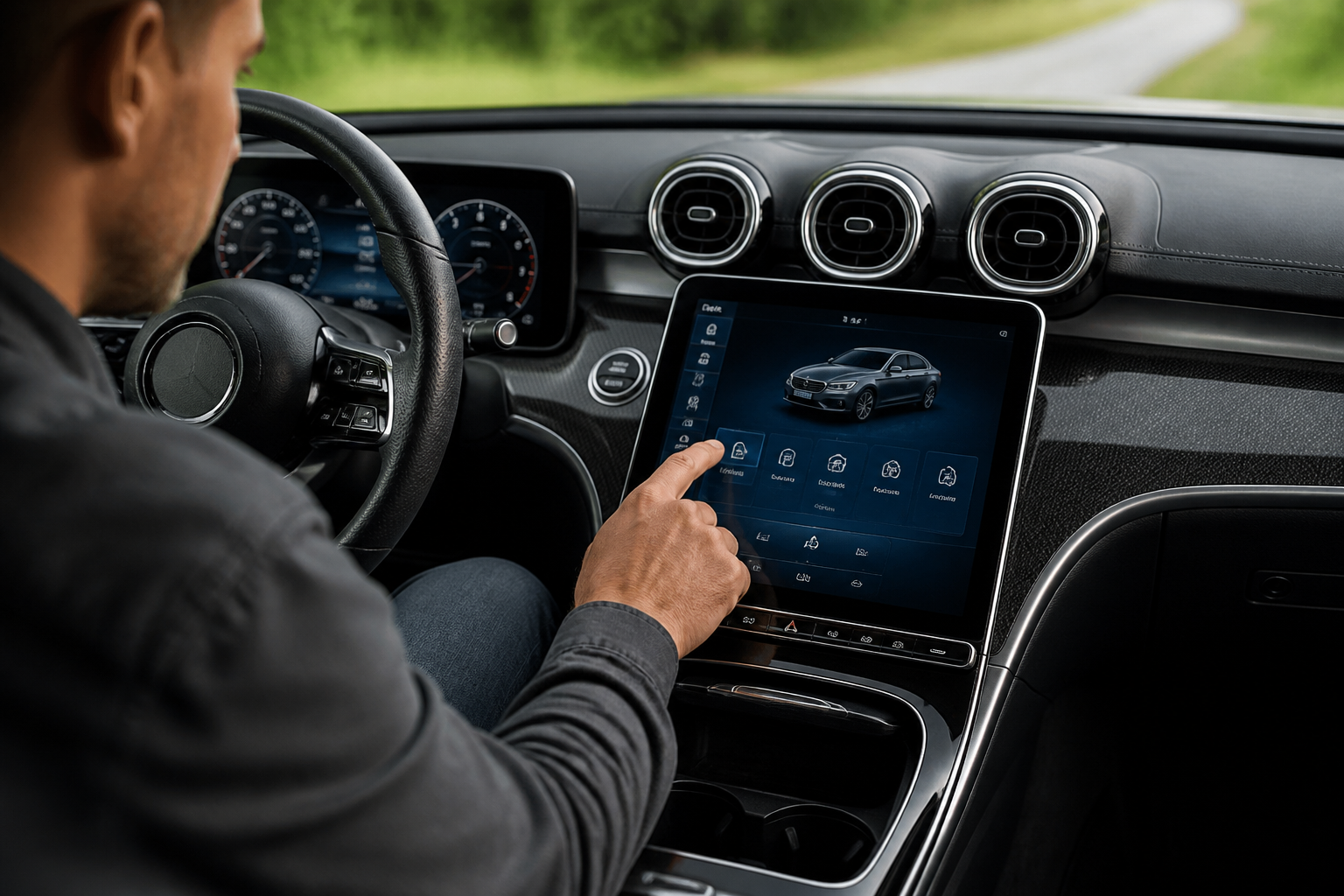
If MB.OS or vehicle connectivity is failing, start with a structured checklist: verify software is current, reset affected modules without data loss when possible, check connections (Bluetooth, Wi‑Fi, and car‑to‑phone links), inspect charging and app integrations, and use built‑in diagnostic tools for error codes. If problems persist after guided steps, schedule a dealer diagnostic, as MB.OS is a complex, security‑ and software‑driven system that often requires factory‑level tooling to repair or re‑pair deeply integrated components.
Key takeaways
- MB.OS issues span software, connectivity, and cloud services; targeted fixes work for most common faults.
- Soft resets and re‑pairing devices solve many Bluetooth and app‑integration problems without data loss.
- Persistent faults usually require dealer diagnostics with factory tooling and fault code analysis.
- Network or map data problems often mimic software faults; confirm updates and region data before escalating.
- Keeping MB.OS updated and documenting steps helps fast‑track dealer support when needed.
Mercedes-Benz operates a growing ecosystem around MB.OS that ties vehicle controls, navigation, charging, and mobile app integration into a single, software-driven experience. When MB.OS isn’t behaving, drivers lose not just a feature but potentially a navigation route, charging session, or remote status update. This guide is a practical, task‑or‑task set of fixes and decision points to get back to normal operation, with a clear distinction between self‑help steps and situations that require dealer diagnostics.
Direct answer to the main query
If MB.OS or vehicle connectivity is failing, start with a structured checklist: verify software is current, reset affected modules without data loss when possible, check connections (Bluetooth, Wi‑Fi, and car‑to‑phone links), inspect charging and app integrations, and use built‑in diagnostic tools for error codes. If problems persist after guided steps, schedule a dealer diagnostic, as MB.OS is a complex, security‑ and software‑driven system that often requires factory‑level tooling to repair or re‑pair deeply integrated components.
Understanding MB.OS and why issues occur
MB.OS is a software‑defined architecture combining vehicle controls, infotainment, navigation, and charging management. It relies on stable wireless links (Bluetooth, Wi‑Fi, cellular), access to cloud services, and firmware stored in multiple controllers. Common fault domains include:
- Wireless pairing and profiles (phone, watch, earbuds)
- Navigation data and map updates
- App connectivity and remote services
- Battery charging integration and route planning
- Software updates that introduce new features or fallback safety patches
Issues can arise after updates, during poor network conditions, or due to incompatible third‑party apps. Understanding the typical fault domains helps target fixes without unnecessary steps.
Self‑help fixes: steps you can take today
1) Boot and screen resets without data loss
When MB.OS becomes unresponsive, a soft reset of the infotainment head unit can clear glitches without erasing saved data. The usual method is to hold the volume knob or power button for ~10–15 seconds until the system reboots. If your model supports a “Reset All Settings” option under Settings > System, you can perform this as a secondary step to clear corrupted preferences while leaving user data intact.
2) Check Bluetooth and phone integration
For Bluetooth pairing problems: remove the device from MB.OS and the vehicle, then re‑pair. Ensure the phone’s Bluetooth is set to visible and that MB.OS is allowed to access Contacts and Messages. If profiles fail, try pairing another device to determine if the issue is device‑specific. For Apple CarPlay/Android Auto, verify the phone app is up to date and that the wireless or wired connection path is selected in MB.OS settings.
3) Wi‑Fi and cellular connectivity
MB.OS uses cloud services for maps, search, and remote functions. If you notice navigation delay, cloud‑dependent features, or remote status inconsistencies, ensure the vehicle’s Wi‑Fi hotspot (if used) is correctly configured or switch MB.OS to cellular data where available. A temporary network outage can look like a software fault, so confirm any ongoing service advisories from Mercedes me or the vehicle’s service status page if accessible.
4) Navigation and map data problems
Corrupted or outdated maps can cause routes to misbehave. Check for map updates in the vehicle’s software update section or via the Mercedes me app. If you’re navigating with offline maps, re‑download the maps region you use most to ensure routing data integrity. If routing prompts are missing, verify voice guidance settings and that the correct region is active in Preferences.
5) Charging integration and trip planning
When MB.OS misreads charging sessions or range estimates, confirm the vehicle and charging station support the same charging standard (AC vs DC, AC mode, CCS/CHAdeMO details). Re‑authenticate plug‑and‑charge services if applicable, and re‑pair the vehicle to public apps that manage charging histories. If a route plan relies on live charging data, verify that the vehicle is connected to the network and that the charging station provides compatible data back to MB.OS.
6) App integration and Mercedes me
Remotely controlled features (lock, climate control, vehicle status) depend on cloud access. If the app shows stale data or fails to control the car, re‑log into the app, refresh tokens, and reinstall the app if needed. Check the system time and date on the phone and in the vehicle; mismatches can disrupt cloud authentication.
7) Security and privacy prompts
MB.OS will often prompt for security updates or consent for new features. Review prompts carefully; some require accepting new terms or rebooting the system to apply enhancements. Do not ignore critical security updates; they typically fix vulnerabilities and improve stability.
When to escalate: dealer diagnostics vs self‑help
Use the following guidelines to decide if you should contact a Mercedes‑benz dealer or authorized service center:
- Persistent connectivity errors across multiple modules (infotainment, navigation, and remote services) after all self‑help steps.
- Repeated boot loops or system reboots that cause the vehicle to be unusable for extended periods.
- Unexplained warnings or fault codes displayed on the MB.OS home screen or instrument cluster.
- Unreliable charging data, inconsistent range estimates, or failed charging sessions that affect planned trips.
- App integration failures that persist after app reinstallation and device re‑authentication.
Dealer diagnostics can involve vehicle‑level fault code extraction, software re‑flashing, and MB.OS module pinning or re‑pair. It’s common for MB.OS issues to be traced to a specific control unit or to a recent update; factory tooling and access to current software baselines are often required for a durable fix.
Practical scenarios and decision criteria
Scenario A: Bluetooth won’t pair with a phone
Self‑help steps: remove both ends, re‑pair, confirm access permissions. If fails, test with another phone. If pairing succeeds with a different device, the problem is device specific; if not, the vehicle needs a diagnostic check for Bluetooth module faults.
Scenario B: Navigation shows “offline” despite network
Self‑help steps: confirm map data is current, check for software updates, verify region settings. If offline persists after updates, dealer diagnostics may be needed to refresh cloud map caches or re‑register the navigation module.
Scenario C: Charging plan derails mid‑trip
Self‑help steps: restart MB.OS charging app, reselect charging path, re‑authenticate charging services. If the system misreads charger data repeatedly, a software re‑flash or module check by a technician may be required.
Scenario D: MB.me remote control fails intermittently
Self‑help steps: log out/in on phone, re‑link MB.me account, ensure clock synchronized. If failing on multiple devices, dealer support should inspect cloud service tokens and vehicle connectivity.
Benefits and drawbacks of self‑help vs dealer support
Self‑help fixes empower owners to quickly address common glitches, minimize downtime, and avoid a service appointment when a simple reset or re‑pair resolves the issue. The drawbacks are that some issues hide deeper controller faults or software baselines that require professional tooling and access to current MB.OS build trees. Dealer diagnostics provide a confirmed fix path, potential software re‑flashes, and access to hidden fault logs, but involve scheduling and costs beyond routine maintenance.
Practical tips for lasting MB.OS reliability
- Keep MB.OS and maps updated to the latest released versions from Mercedes‑Benz official channels.
- Regularly re‑pair Bluetooth devices after major OS updates to avoid stale profiles.
- Use a stable, well‑performing mobile device for MB.me and app integration; avoid old devices with known compatibility issues.
- When using public charging networks, ensure the vehicle recognizes the station profile and that charging data is correctly reflected in MB.OS.
- Document recurring issues with timestamps and steps to reproduce when visiting a dealer for diagnostics.
Conclusion
MB.OS is core to the Mercedes‑Benz ownership experience, linking navigation, charging, and digital services in a single software stack. Most connectivity issues can be resolved through structured self‑help steps that cover resets, re‑pairing devices, confirming network access, and ensuring app integration is current. When problems persist, dealer diagnostics provide far more than a simple reset, including targeted fault analysis, module checks, and software re‑flashing where necessary. With a methodical approach, owners can minimize downtime and preserve the value of their MB.OS driven experience.
Self‑help vs dealer diagnostics: a quick decision grid
| Scenario | Self‑help steps | Dealer diagnostics when needed |
|---|---|---|
| Bluetooth pairing | Remove device, re‑pair, confirm permissions; test with another phone | Persistent failure after resets; module fault suspected; diagnostics needed |
| Navigation offline | Check map updates, region settings; restart maps service | Offline persists after updates; possible navigation unit fault |
| Charging data issues | Re‑authenticate charging services; re‑plan route | Repeated incorrect data or failed sessions; error codes present |
| App remote control | Re‑link MB.me; re‑install app; check time/date | Cloud token or service issue despite app reset |
Frequently asked questions
What are quick fixes for Bluetooth pairing?
Remove the device from MB.OS and the vehicle, re‑pair, ensure phone permissions for Contacts/Messages are enabled, and test with another device to isolate the cause.
How to reset MB.OS without data loss?
Soft reboot of the infotainment unit by holding the power/volume button for 10–15 seconds; if available, use Settings > System > Reset All Settings to clear corrupted preferences without erasing user data.
When should I contact support?
If multiple self‑help steps fail, or the system shows persistent fault codes, warnings, or unreliable cloud connections across Bluetooth, navigation, and charging, a dealer diagnostic is recommended.
Can MB.OS updates cause problems?
Yes; occasionally a new update introduces compatibility glitches. Ensure you install updates from official Mercedes sources and report issues with exact MB.OS version and symptoms.
Is charging data reliability a MB.OS issue or charger issue?
Could be either. Check vehicle data in MB.OS, re‑authenticate charging services, and verify charger compatibility. If issues persist, dealer diagnostics can determine if the fault is in the vehicle or the charging network.