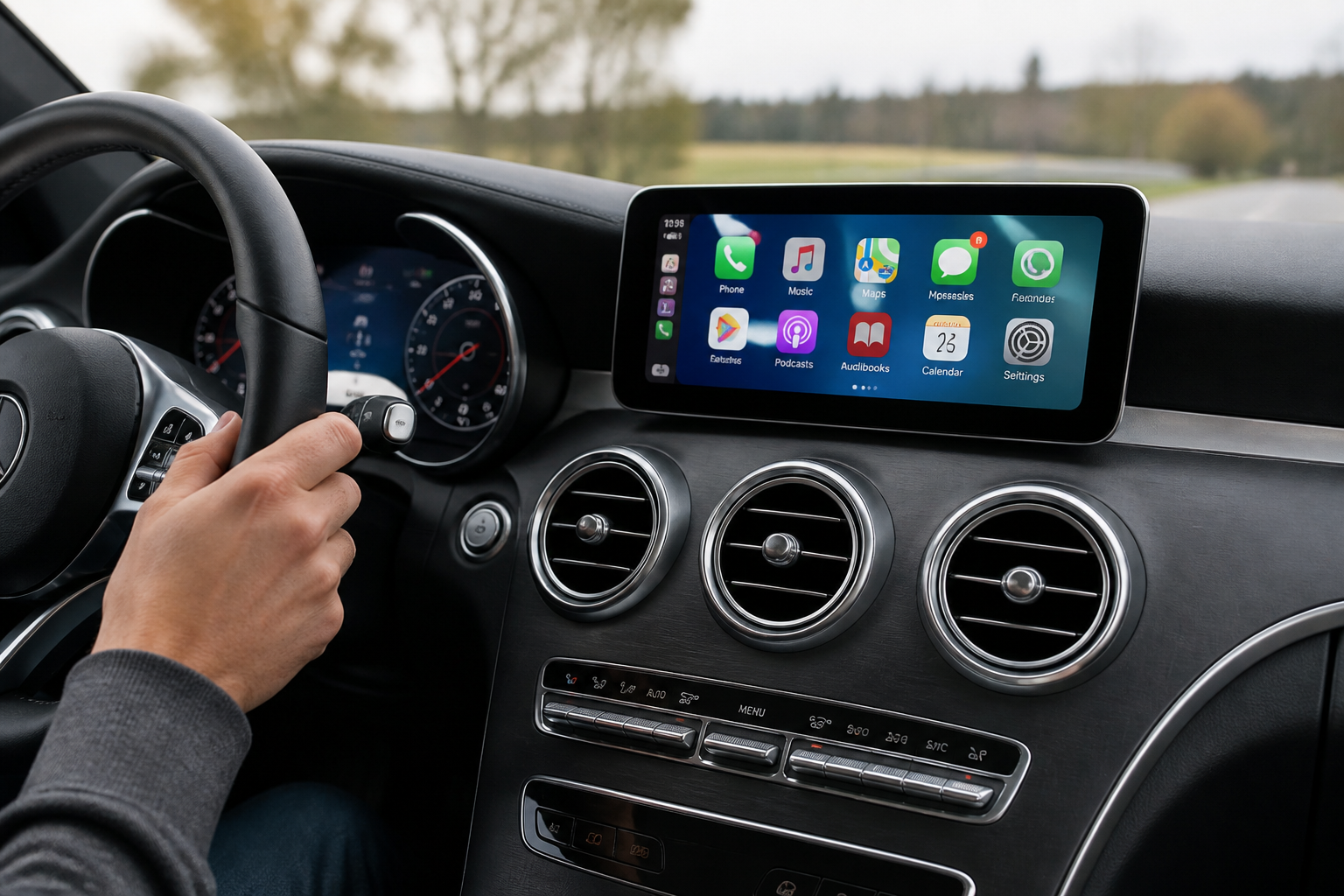
When shopping for a Mercedes, verify if Apple CarPlay and Android Auto connect via wired or wireless methods for the exact model and year you plan to buy. Do not assume wireless support; test the vehicle to confirm the actual connection method and screen behavior before making a purchase.
Key takeaways for buyers
- Verify the exact model/year you’re considering to learn the specific CarPlay/Android Auto connection method.
- Test both wired and wireless connections (if offered) on the vehicle you’ll own, noting screen layout and navigation behavior.
- Do not rely on badges or general MBux names—model- and generation-specific testing is essential for accurate expectations.
Decide confidently by verifying the exact MBUX connectivity on the specific Mercedes model and year you’re evaluating. This expanded guide translates model-year quirks and infotainment generations into a practical, testable checklist you can use during a test drive, a dealer walkaround, or when reviewing detailed specification sheets. It emphasizes real-world testing cues and notes the trade-offs between wired and wireless CarPlay/Android Auto to help you make a decision that sticks beyond glossy marketing claims. The goal is to empower buyers with a repeatable verification method that minimizes surprises after purchase and clarifies how the system will behave in everyday driving scenarios.
Key takeaway: don’t assume based on the badge
MBUX naming and the presence of CarPlay or Android Auto features do not guarantee the same connection method across all model years or trims. The exact configuration depends on the generation of the infotainment system (MBUX version) and the vehicle’s production date. A showroom display or brochure can be misleading if it references a newer integration than the specific car on the lot. By focusing on the exact car you intend to own, you avoid buyer’s remorse caused by feature mismatches and limited real-world usability.
Why verifying the actual connection method matters
Wireless CarPlay and Android Auto offer convenience, reducing clutter and cable wear. However, some Mercedes models still require a wired connection for CarPlay, or limit wireless functionality to certain markets, trims, or software builds. The connection method determines not only how you pair the device, but how navigation, calls, and messages are projected on the display, and whether those tasks interrupt or compete with ongoing vehicle information like climate controls or gauge readouts. In practice, accurate verification helps you anticipate daily workflows—such as whether maps occupy the full display, how quickly prompts respond, and how easy it is to switch between apps while driving.
Practical verification framework for shoppers
- Identify the exact model year and trim you’re evaluating, and confirm the MBUX generation and infotainment software version listed by the dealer or in the vehicle’s documentation.
- Plan to test both wired and wireless connections. If possible, bring your own smartphone and the typical apps you use for navigation (Apple Maps, Google Maps) and hands-free operations to evaluate projection quality, responsiveness, and audio routing.
- During the test, observe: (a) which connection method activates first, (b) whether the home screen layout is full-width or split, and (c) how maps, media, and calls are displayed and controlled across the center stack, instrument cluster, and voice interfaces.
- Note any screen behavior quirks, such as non-intuitive menus, prompts appearing behind climate controls, or maps occupying only a portion of the display in certain modes.
- Ask the dealer for any software updates, retrofits, or market-specific limitations that could affect connectivity during your ownership period, and verify support for the latest wireless protocols where applicable.
Decision criteria: translating observations into a buy signal
- Exact connection method supported for your car (wired only vs wireless CarPlay/Android Auto) and whether both modes are reliable in everyday use.
- Display layout and usability: is navigation full-screen or layered, are audio controls accessible without leaving the map, and can you switch between apps without distraction?
- System responsiveness: latency, stutter, or resets when maps update, calls come in, or messages are read aloud.
- Model-year and infotainment-generation caveats: verify if known limitations exist for your configuration and whether a software update addressed prior issues.
What to test on the day of the test drive
Focus on the exact model-year you will own. If you rely on turn-by-turn navigation from Apple Maps or Google Maps, confirm that wireless CarPlay remains stable in challenging environments such as urban canyons, tunnels, or areas with weak cell signal. For drivers who frequently use charging-enabled CarPlay, verify whether the system remains fully functional when the phone is charging and whether the map display remains clear and responsive while navigation prompts are active. If the central display is large, ensure critical vehicle controls are not disproportionately obscured by map or app content.
Real-world decision scenarios and caveats
- Scenario A: You want maximum cable-free convenience. Validate whether wireless CarPlay/Android Auto is supported in your target model and whether it remains stable during extended drives, including highway segments and urban detours. Note any intermittent drops or re-pairing events.
- Scenario B: You rely on continuous power for the infotainment display. If wired CarPlay is required, test scenarios where the phone is charging while CarPlay is active and observe whether the map display and audio routing remain smooth throughout the trip.
- Scenario C: You compare two trims. If one trim offers wireless CarPlay and the other does not, align your test notes with the exact capabilities of each to avoid post-purchase surprises regarding in-car connectivity.
Limitations and model-dependent caveats to keep in mind
Connectivity experiences can vary by market, software version, and even production batch. A car built early in a model year can differ from a late-run unit if Mercedes or the supplier software receives updates. Some regions have more restrictive wireless implementations due to regulatory or network considerations. Always verify the vehicle you’re buying has the features you expect, and, when possible, obtain written confirmation of the tested methods from the dealer. If you rely on third-party apps or region-locked services, confirm they are supported in your country and under your chosen trim. Keep in mind that reviews and brochures describe typical configurations, not the exact unit you’ll own.
Documentation and notes you should collect
- Make, model, year, VIN range, and the exact MBUX version and infotainment software build in the vehicle you test.
- Record the connection mode for CarPlay and Android Auto (wired, wireless, or both) and note any limitations or layout changes observed during the test drive.
- Capture screenshots or short videos of the screen behavior if allowed by the dealer, so you can compare with other vehicles or future software updates.
Bottom line: a disciplined buying checklist
To avoid overpaying for a feature that doesn’t meet your needs, insist on validating the precise CarPlay/Android Auto behavior in the exact car you intend to buy. The most reliable confirmation comes from testing in the vehicle you plan to own, ideally under typical driving conditions and with your preferred apps active. By documenting the observed connection method, screen layout, and stability, you can negotiate with confidence and set realistic expectations for everyday use. Consider building a short, repeatable testing script you can reuse across multiple cars or future model years to track how connectivity evolves with software updates.
Common real-world pitfalls to watch for
- Firmware fragmentation: a dealer’s walkthrough may show a newer system than the car you test, leading to optimistic expectations. Always confirm the exact firmware version and feature set on the unit you intend to buy.
- Region-specific limitations: wireless CarPlay/Android Auto availability and behavior can differ by country; a US-spec car may not mirror the same features as a European-spec unit.
- Display behavior with navigation: some configurations place maps in a dominant position while reducing the prominence of controls on the same screen. Ensure this aligns with how you navigate daily.
What to bring to the dealer or test drive
- Your own smartphone(s) with current OS versions and the apps you rely on most.
- A brief checklist of the exact CarPlay/Android Auto behaviors you expect (wired vs wireless, full-screen maps, quick app switching).
- Any questions about updates, retrofits, or future software support that could affect connectivity during your ownership.
Sources
- Before You Buy a Mercedes: Verify Whether MBUX Has Wired or Wireless Apple CarPlay and Android Auto
- Before You Buy a Mercedes: Verify Whether MBUX Has Wired or Wireless Apple CarPlay and Android Auto
Key questions and quick answers
Is wireless CarPlay in Mercedes standard across all models?
No. Wireless CarPlay availability varies by model year and MBUX generation; verify on the exact vehicle you’re considering.
How should I test CarPlay/Android Auto during a test drive?
Ask to connect both CarPlay and Android Auto in wired and wireless modes if the car supports them, and observe screen behavior and map/navigation flow.
What should I document for a purchase decision?
Note the connection method, screen usage, stability during navigation, and any year-specific limitations for the exact vehicle.